Adding it to Chrome
- Open the Chrome Web Store listing and press Add to Chrome. Chrome asks you to confirm: it needs to read pages to check them. See what it reads and what it never keeps.
- Pin the button. Press the puzzle-piece icon at the top right of Chrome and press the pin next to Danger Stamp, so its button is always in the toolbar.
- That's it. It starts on the next page you open. No account, no card, no settings to change.
Danger Stamp works in Google Chrome on a computer: Windows, Mac, Linux and Chromebook. It isn't on phones or in other browsers yet.
What happens on a normal page
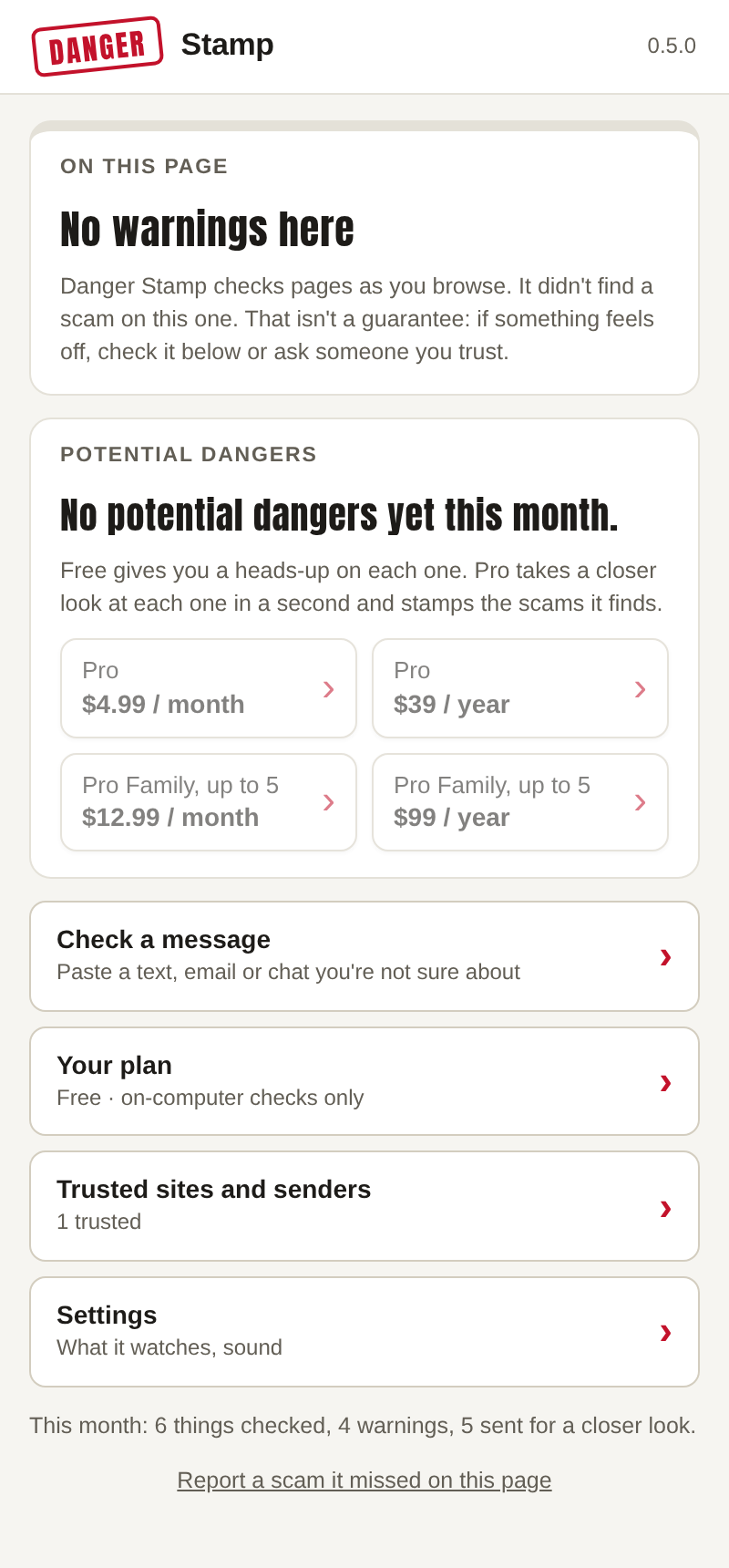
Nothing, and that's the point. On an ordinary page it stays out of the way. Press the Danger Stamp button in the toolbar and it says No warnings here, with how many pages, emails and chats it has checked this month.
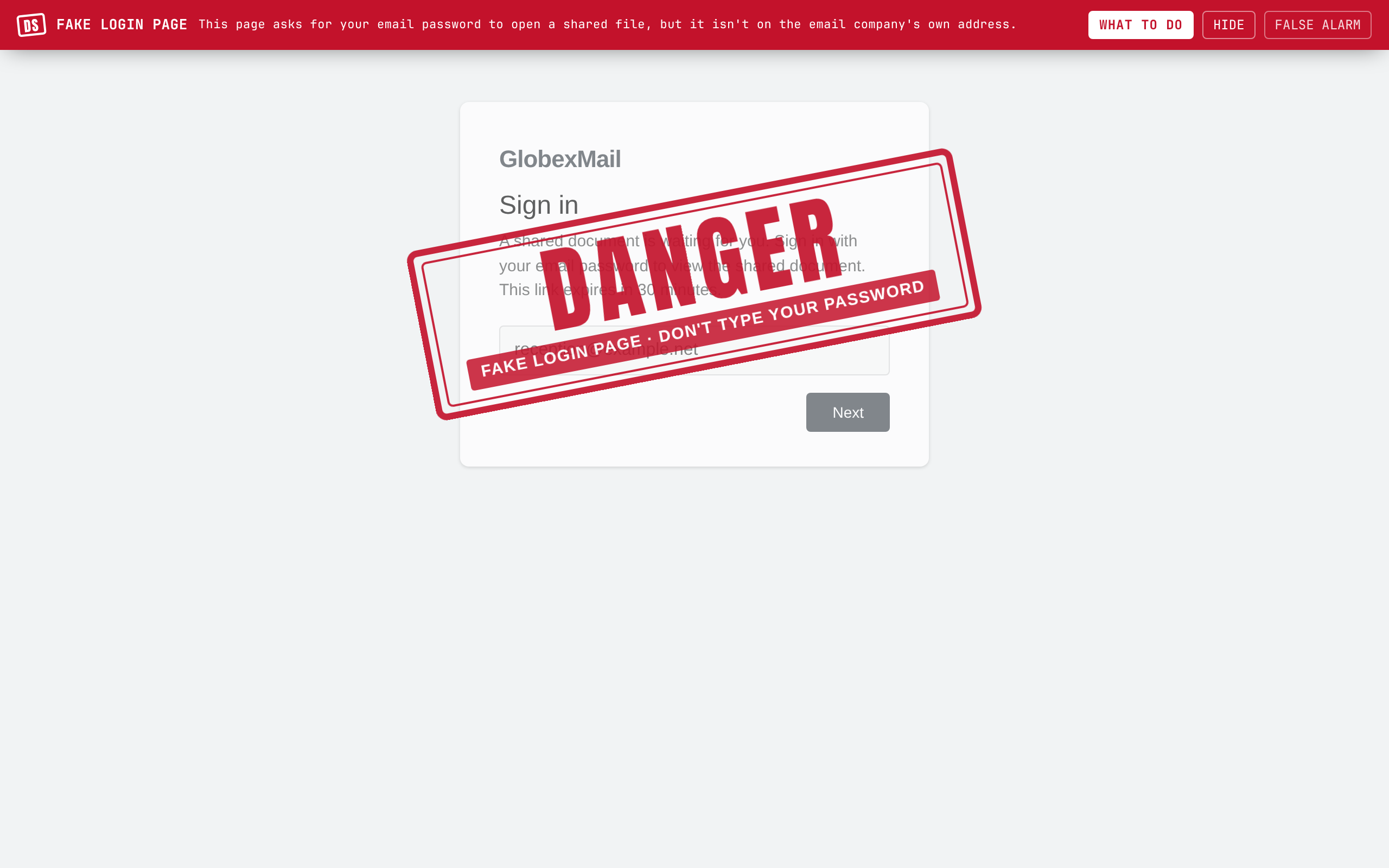
When a page, email, chat, comment or ad is a scam, a red stamp lands on it and a bar at the top says what it is and what to do. When you see a warning walks through it. To see one right now, open one of the practice pages: they are safe copies of real scams.
Free and Pro
Free runs every check on your own computer, for free, for as long as you like. Nothing you read ever leaves it. The free checks catch scams that give themselves away: fake sign-in windows, most fake login pages, forged senders, pages that mess with your clipboard or full screen. When something might be a scam but needs a closer look, Free gives you a heads-up, a small Danger warning, and says what it could be.
Pro adds the AI check for those cases. It reads the whole page or message, tells a real scam from a false alarm, and stamps the scams it finds. Pro Family is the same for up to 5 browsers, so you can cover parents or kids on one payment. Prices and how to add people are in Plans and billing.
Turning on AI checks (Pro)
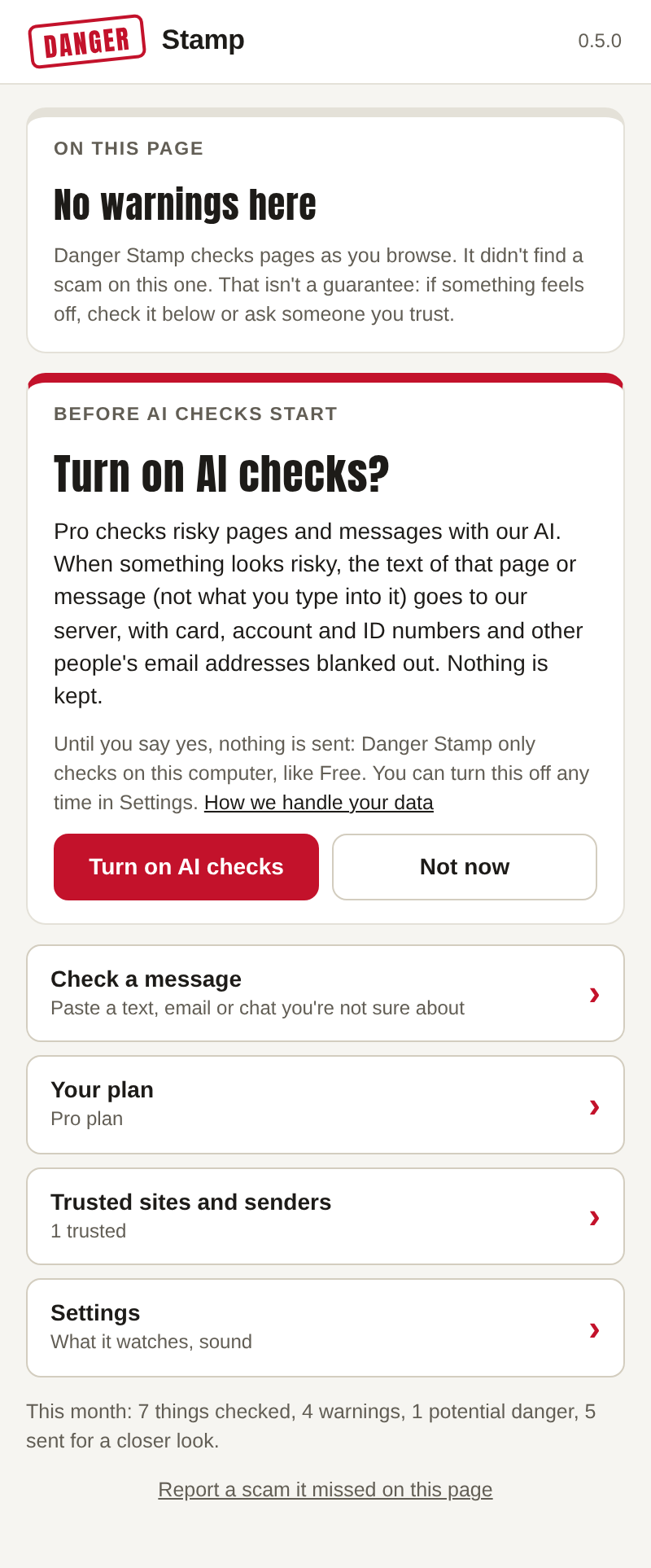
Paying for Pro doesn't send anything by itself. The first time you open the Danger Stamp button on a Pro browser, it asks Turn on AI checks? and explains exactly what is sent: when something looks risky, the text of that page or message (never what you type into it), with card, account and ID numbers and other people's email addresses blanked out. Nothing is kept.
Until you press Turn on AI checks, a Pro browser checks only on your computer, like Free. Every browser on a family plan asks for itself. You can switch it off any time in Settings.
Danger Stamp's warnings follow Chrome's zoom. Press Ctrl and + (⌘ and + on a Mac) on any page and the bar and stamp grow with it.